
Lead Time and linking task deadlines to the contractual date
What is this feature for?
A task deadline does not always match the date promised to the client. Work often needs to be completed earlier. In Flowgres, you can set a Lead Time, which is the number of working days between task completion and the contractual date. It gives you some breathing room to wrap up the work.
For example, a task must be completed 5 working days before the contractual date. If that date changes, Flowgres can automatically calculate a new task deadline and adjust the start date to the amount of work involved. This means fewer manual schedule updates and a clearer view of how much time is really left.
How does it work?
Current and baseline Lead Time
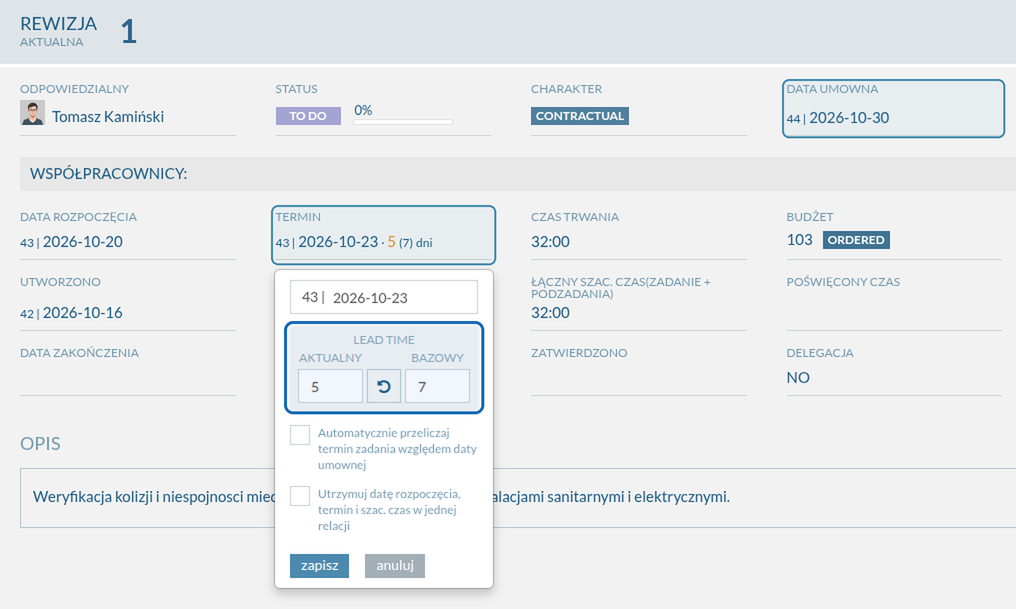
In the task details (within its revision), you will find two fields: Current Lead Time i Baseline Lead Time. Both are expressed in working days.
Current Lead Time is the margin the system uses to calculate the task deadline from the contractual date. Baseline Lead Time is the reference value — the originally planned margin against which you can compare the current plan. For example, the baseline is 7 days, but the current buffer is set to 5.
You can change each value independently. To restore the original margin, use the button that resets the current value to the baseline. Flowgres will recalculate the task deadline automatically — no manual calendar counting required.
Lead Time in the task list
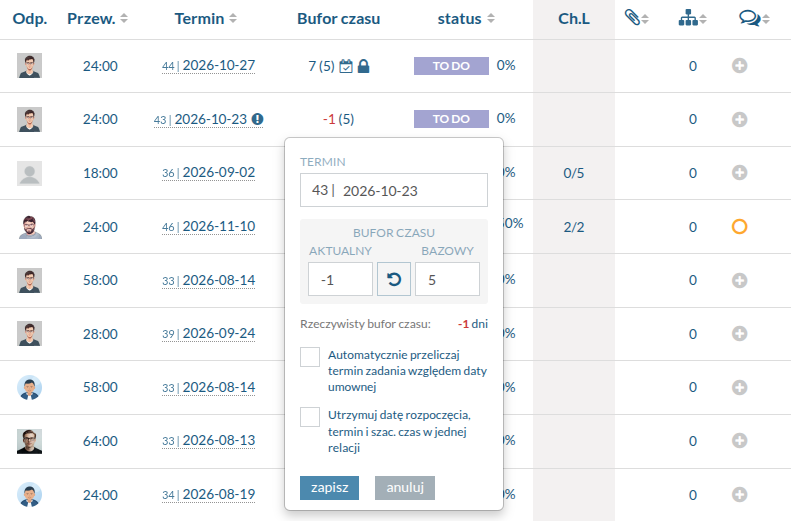
A new column called Bufor czasuhas been added to the task list. It shows each task’s buffer alongside icons that indicate how the task is configured:
- 6 Current Lead Time in working days. The current value matches the baseline.
- 11 (15) The current buffer differs from the baseline. The first number is the current value, while the number in parentheses is the baseline. The color highlight indicates that the plan differs from the original assumptions.
- −420 A negative value means the task deadline falls after the contractual date — there is no Lead Time remaining.
- Automatic deadline recalculation based on the contractual date is enabled for this task.
- The task is configured to maintain the relationship between its start date, deadline, and estimated effort.
You can also change the Lead Time directly from the task list without opening task details. Click the task deadline to open the editing pop-up. There, you can change the deadline, current and baseline buffers, restore the baseline with one click, and enable or disable both automations. Confirm your changes by clicking Save.
Automatic recalculation based on the contractual date
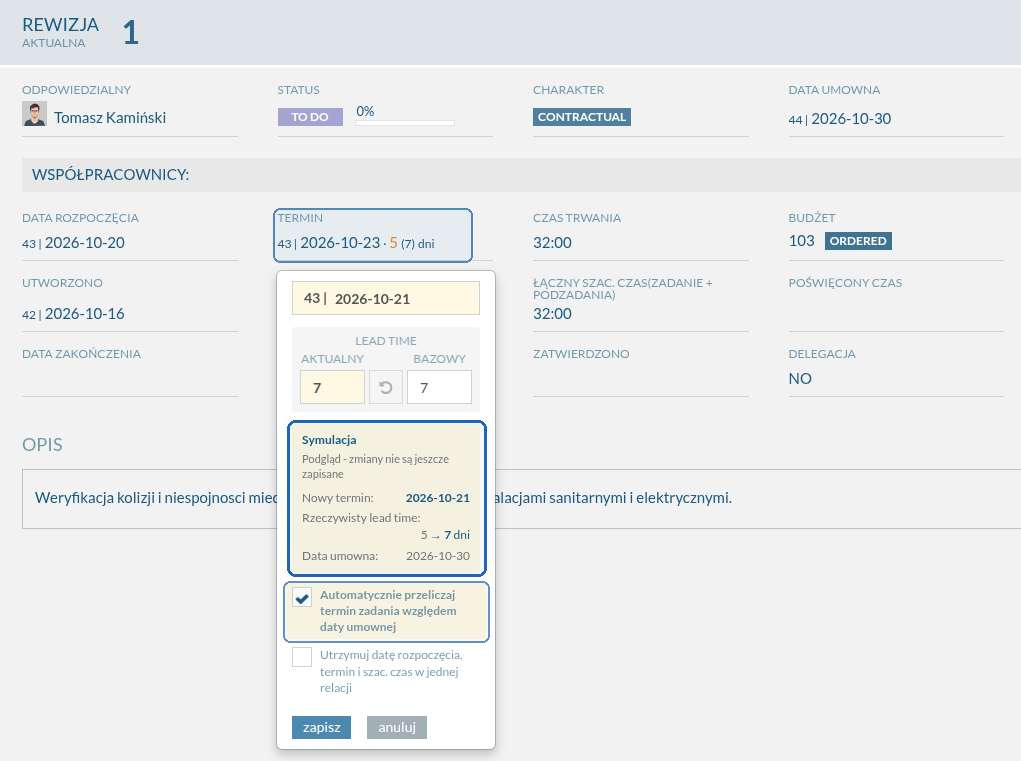
If you want the task deadline to change when the contractual date changes, enable the setting “Automatically recalculate the task deadline based on the contractual date”.
When the contractual date changes, Flowgres automatically determines a new task deadline while preserving the configured Lead Time — for example, the 5 working days mentioned above.
You no longer need to find and update every task deadline after a change to the contractual date. The Lead Time stays intact, making your schedule easier to manage.
Dates adjusted to estimated effort
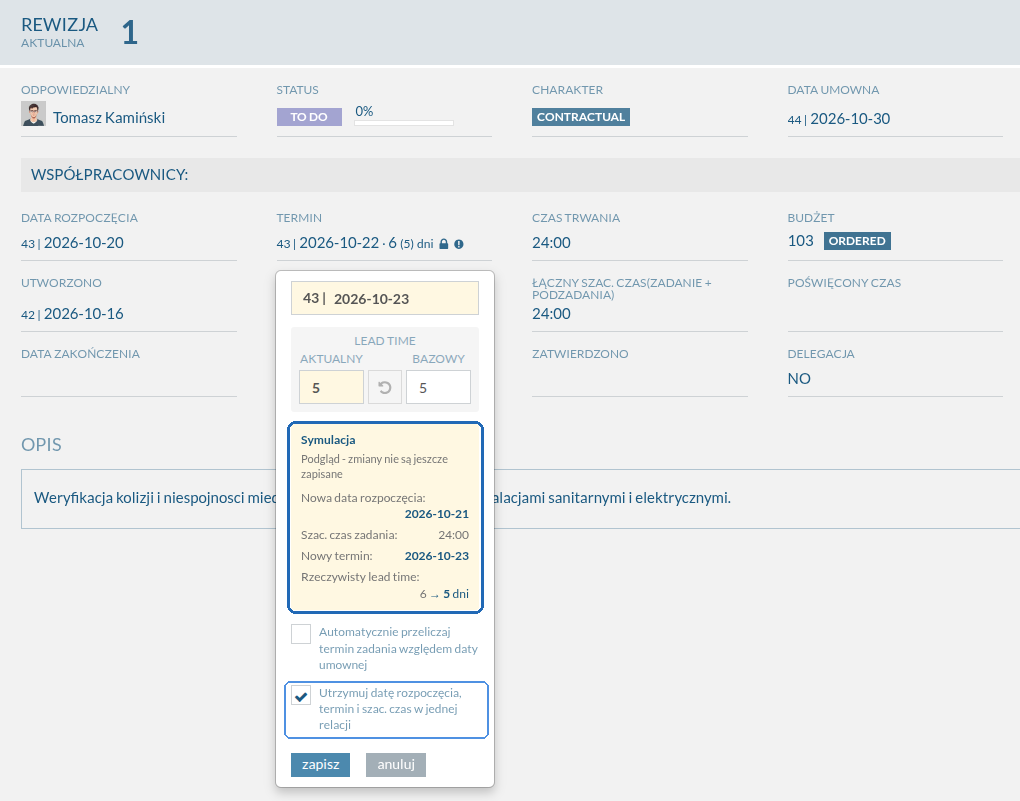
You can also enable “Keep the task start date, deadline, and estimated effort aligned”. This connects three pieces of information: when the task starts, when it must finish, and how much work is estimated to complete it.
When enabled, Flowgres can adjust task dates to the estimated effort. Your schedule reflects the amount of work required instead of treating dates and estimates as independent values.
Imagine that the task deadline stays the same, but completing the task turns out to require more time than expected. Flowgres can move the start date earlier, making it immediately clear that work needs to begin sooner.
The system also checks date-related constraints. If a recalculation cannot be completed, it will notify you so you know which tasks require extra attention.
Project-wide automation
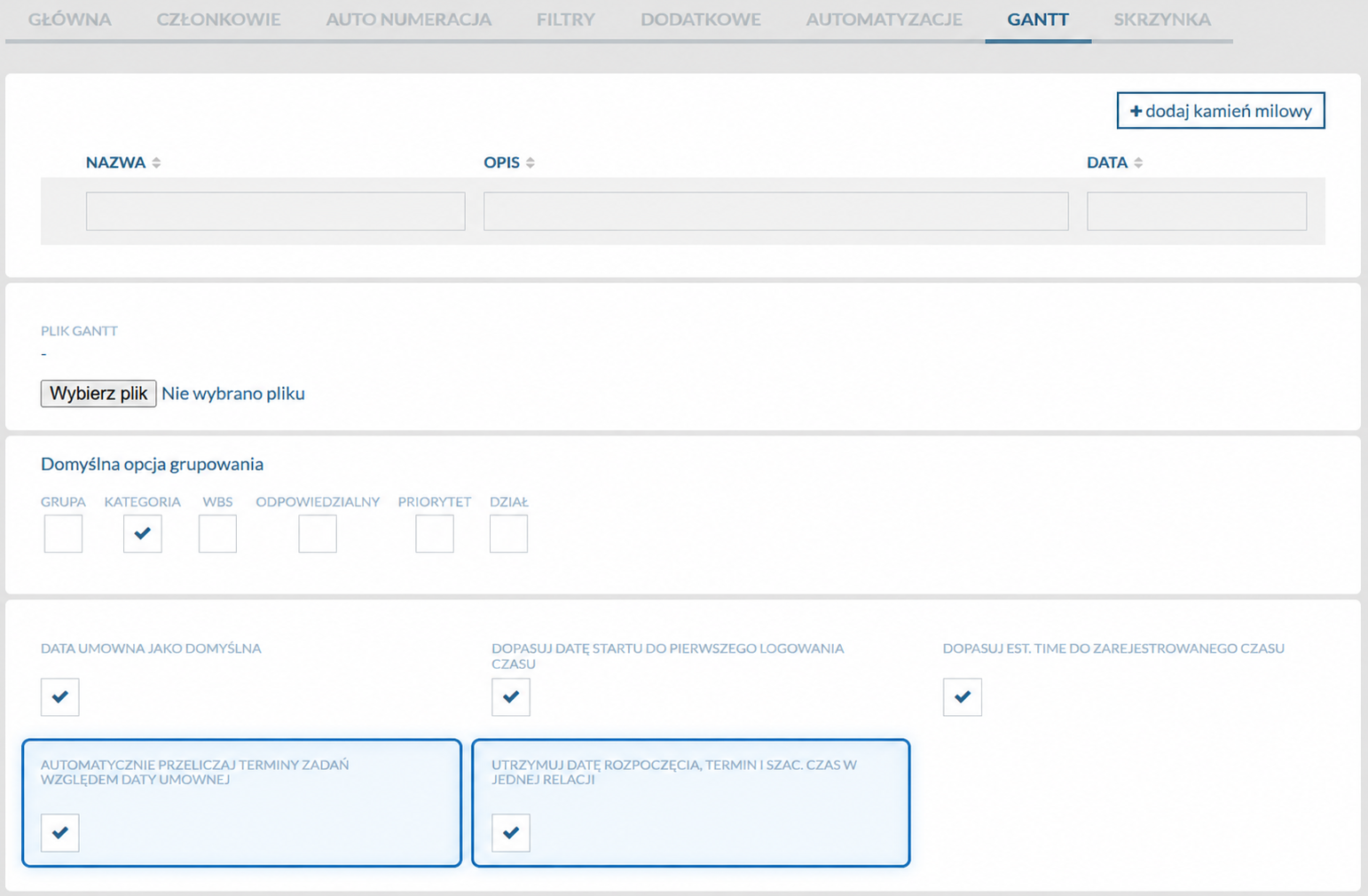
You do not need to enable automation for each task individually. In the project settings, under the Gantttab, we have added two settings: “Automatically recalculate task deadlines based on the contractual date” oraz “Keep the task start date, deadline, and estimated effort aligned”.
When enabled, the selected rules apply across the entire project. This is convenient when all tasks should be scheduled in the same way — configure the rules once rather than managing each task separately.
Recalculate multiple tasks at once
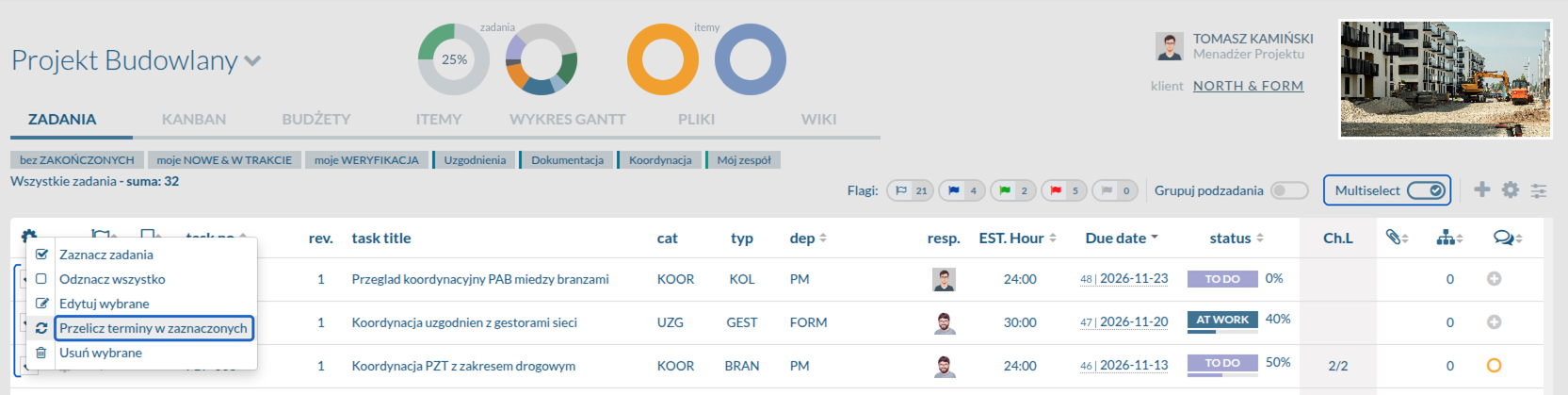
You do not need to update deadlines one task at a time. To update multiple tasks simultaneously, open the task list and turn on the “Multiselect”toggle above the table. A checkbox will appear to the left of each task — select the tasks whose deadlines you want to recalculate.
Next, click the gear icon above the task list and choose “Recalculate deadlines for selected tasks”from the drop-down menu. This opens the “Recalculate deadlines for selected tasks”dialog, where you can set the parameters and choose a recalculation method. This is useful, for example, when the entire project schedule changes.
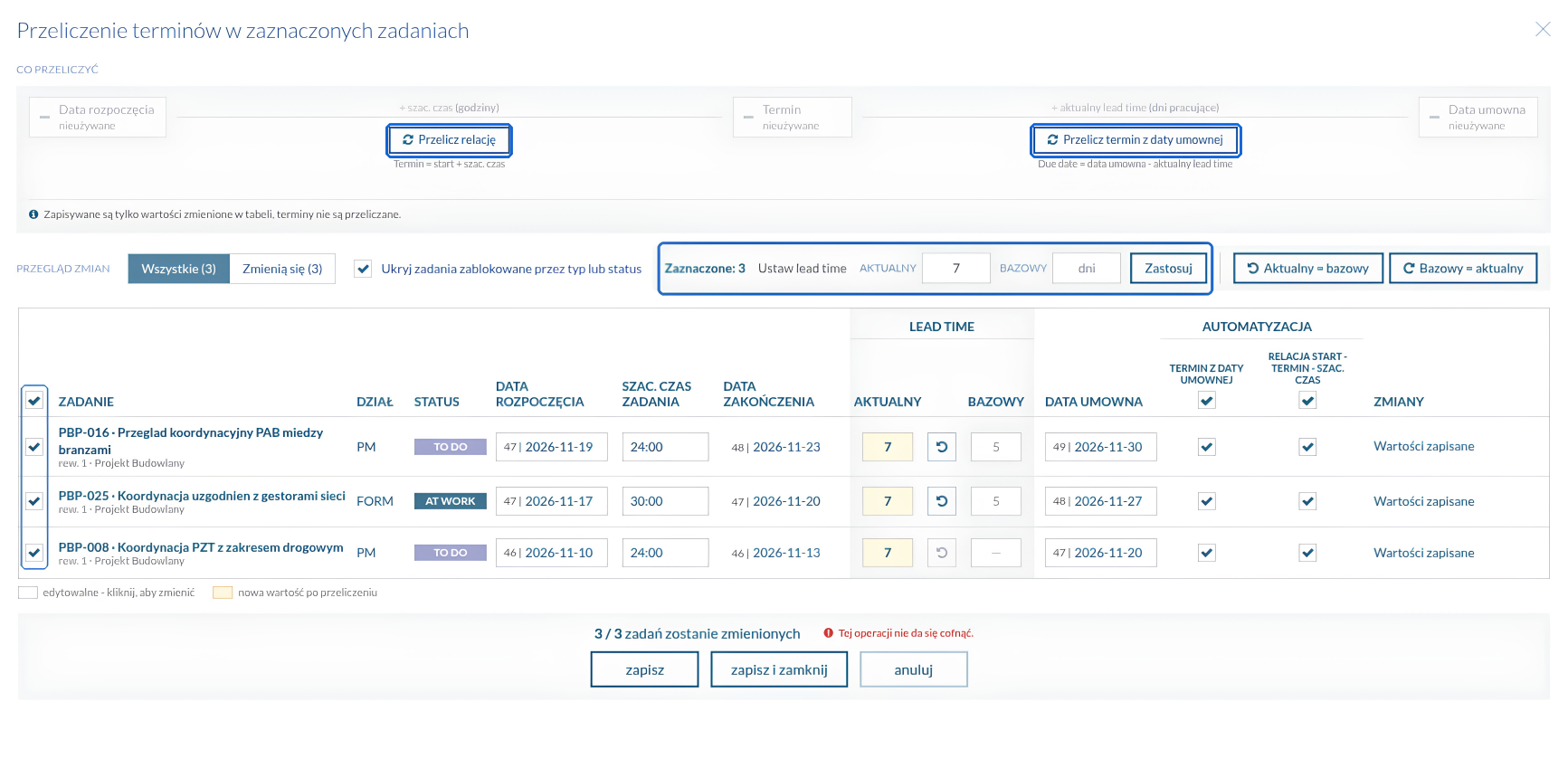
In this dialog, you can set the current or baseline Lead Time for all selected tasks, or make the two values equal — without repeating the same steps for every task.
Two recalculation methods are available: Maintain relationship — adjusts the start and end dates to the estimated task effort; and Deadline from contractual date — calculates the deadline by subtracting the current Lead Time, in working days, from the contractual date.
You can use either method or both together. When both are selected, Flowgres first calculates the deadline from the contractual date and Lead Time, then adjusts the start date to the estimated effort.
A one-time recalculation does not enable or change any automation saved in the tasks. It simply applies the selected schedule changes at that moment. This matters when you need a one-off adjustment without changing how tasks behave in the future.
You therefore have two options: enable automatic deadline management for everyday use, or recalculate selected tasks only when needed. You decide when and how to update the schedule.
Preview changes before saving
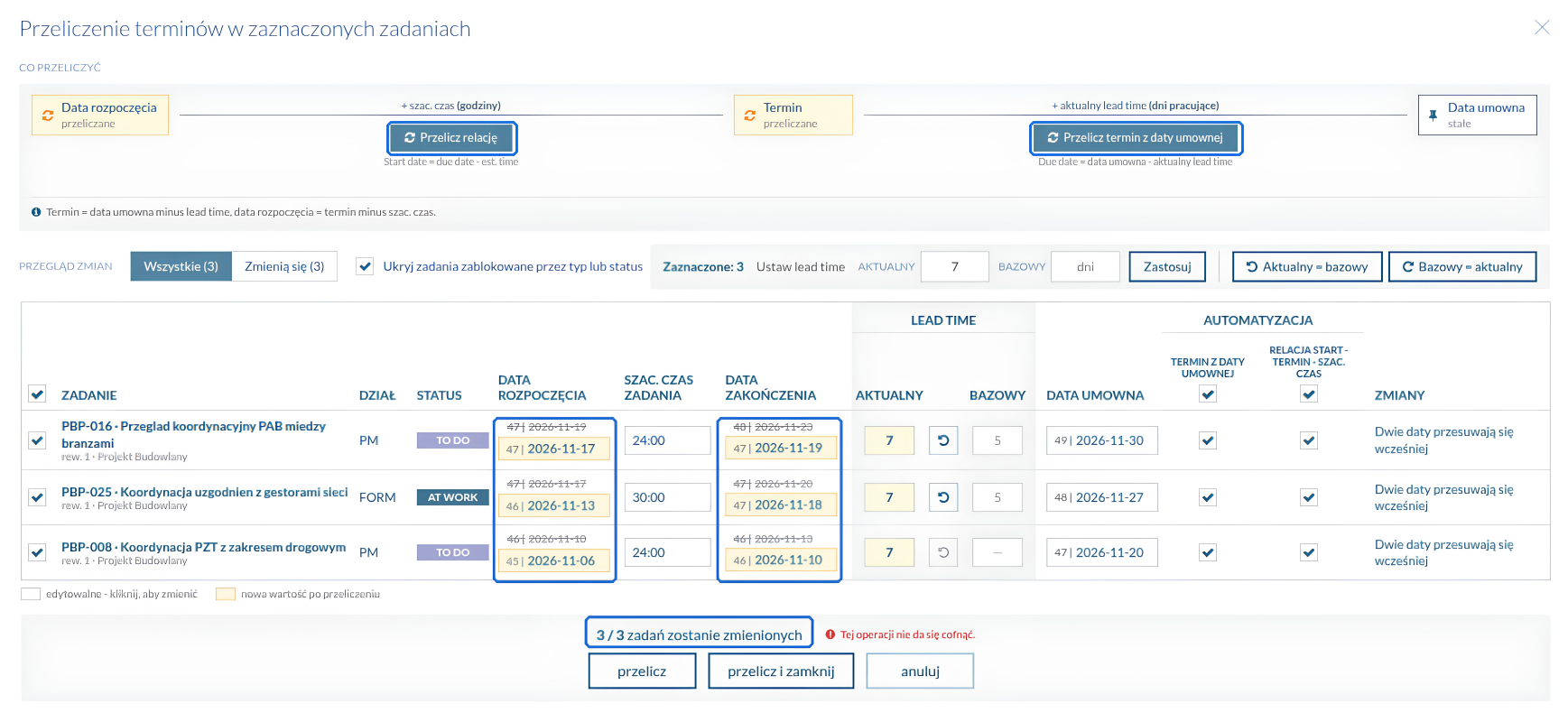
Before saving changes to one task or several at once, you will see a preview of the planned changes. You can review the new dates before confirming them.
Flowgres highlights values that will change and identifies tasks requiring updates. If required data is missing or a constraint prevents deadline recalculation, you will be notified.
The preview lets you check that the new deadlines make sense before approving them. This is particularly helpful when updating many tasks, where reviewing each change manually would be difficult.
Uprawnienia
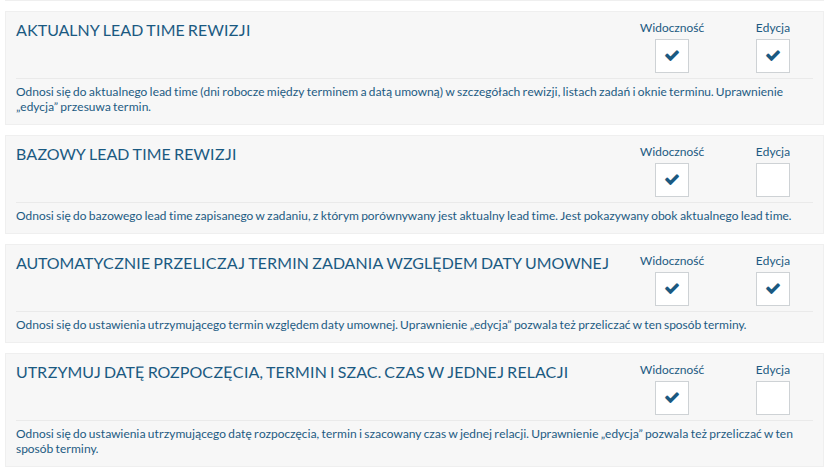
Not everyone on the team needs access to every setting. The administrator decides who can see the new fields and who can change the deadline recalculation rules.
Permissions cover viewing and editing the current and baseline Lead Time values, as well as access to automatic recalculation settings based on the contractual date and the relationship between dates and estimated task effort.
Those responsible for planning can manage deadlines, while other users have access appropriate to their roles. Schedule changes remain under control.
Explore other new features
Want to see this feature in action?
See how Flowgres helps you plan tasks, maintain a buffer before the contractual date, and update deadlines faster in a free 30-minute demo.
Book a demo →
